Showing posts with label tips. Show all posts

Thursday, July 19, 2012

Command line script to batch convert images

Ever had a folder full of images that you needed to convert? Well, today I had a couple hundred 20Mb RAW images that I wanted to convert to JPG, and I really didn't want to open them on an image editor.

So I went hunting for a way to convert the images using the command line on the Mac. Here's what I found:

1. Converting an image via command line: There's a tool called "sips" that does this (and much more) on the mac! To convert a file from RAW to JPG, you just need to call something like:

sips -s format jpeg IMAGE.NEF --out IMAGE.jpg

2. Getting the right name: Iterating a list of files via command line is easy, getting just the filename in order to change the extension requires google! Here's how to do it:

for i in *.NEF; do echo "${i%.*}.jpg"; done

(curious on how it works? Check this doc)

3. All together now: To convert all the files in the current directory, do this:

for i in *.NEF; do sips -s format jpeg $i --out "${i%.*}.jpg"; done

Let me know how the script worked out for you!

Wednesday, March 21, 2012

Delay your project, protect your future


One of the dangers of Agile is that teams are so busy sprinting and delivering potentially shippable projects, that they forget to invest in becoming more productive in the future.

Let's use some basic economics to illustrate this problem.  Assume your team has a top productivity of X. It doesn't matter the unit you pick - story points per iteration, function points per month -  but let's assume your team cannot produce more than X.


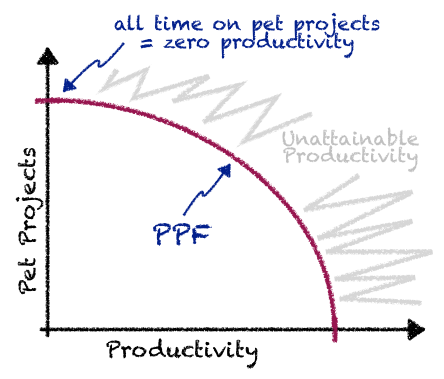
Now, one of the things you can do with productivity is move it around. For instance, google allows employees to invest part of their work week on pet projects. So if we put that on a vertical axis, we get something like this:


This curve is called a Production Possibility Frontier, or PPF, and it represents your team's limit in terms of productivity. This means the only way you'll make your team more productive is by moving the PPF! And the way to achieve this is through investment.

You may argue that google pet projects are an investment, but what I mean is direct investment in improving productivity. For instance, you could invest in improving your QA infrastructure, so that developers don't spend so much time building and fixing tests. Or you could invest in tools to improve your overall capacity to deliver, like the OutSystems' Agile Platform. (disclaimer, I work for OutSystems! ;).

When you do this type of investment, the end result is that you move the PPF to the right, therefore increasing your team's capacity to deliver.


Easy, right? So why isn't everybody doing these investments and increasing their productivity? Why do we meet so many inefficient teams and R&D departments?

Turns out there is a catch. These improvements are not continuous, and work in leaps. This means you need to go all the way to see the results of your investment. If you study a new tool for a couple of weeks and stop the investigation before something actionable comes out of the study, you're just throwing your time and money out the window...

But guess what happens as soon as a the project stars to slip? We choose the short term solution, and increase the productivity of the team at the expense of our investment.

Standing up to your stakeholders and delaying a milestone to protect your future is the hard part in making your team more productive. And I hope this short post gives you a bit of ammunition to go in the right direction! :)

Tuesday, February 21, 2012

Why developers suck at UI design

Yesterday I was listening to this podcast from Boagworld  dedicated to the dangers of "what if" design. The basic idea is that you shouldn't let exceptions hinder the experience of the majority. I.e. if something happens once in a blue moon, you shouldn't compromise your UI design because of it.

At a certain point he alerts for the fact that developers tend to make this mistake because developers are worried about edge cases - "what if the connection to the database is broken", "what if the user isn't logged in". I agree with this, and I believe this is one of the reasons developers tend to make interfaces that are overly complicated for the common use case.

The solution seems easy, right? Developers need to take a step back from their work, look at the user-stories they captured from their users, make the most used features really obvious, and hide the rest of the clutter.

Well, nothing fundamentally wrong with this approach. I believe developers must deliver the best possible interface they can, and that requires effort and training. But I don't believe this is enough.

The problem is, when you dive as deep as a developer does on the project, it's very hard to step back and take a look at the big picture. What developers really need to do is get someone from the outside to spot the obvious errors that are just too evident to be seen by someone buried in the nitty gritty details of a project.

Again, this sounds like a simple enough solution. After all, getting someone to comment on your work isn't really hard, is it? Specially if it's about design! But the problem is that most developers don't know how to listen or how to act on the feedback they receive. It's the "what if" problem again... it's really easy to dismiss feedback based on edge conditions that happen 1% of the time. (This makes a great topic for another blog post, and I urge you to write it!)

In the meantime, no time like the present to become better at UX design. Here's an interesting webinar with "6 steps to engineering awesome user interfaces". Have fun!
(disclaimer: this is a webinar recorded by me for OutSystems, the company I work for)

Monday, October 3, 2011

DIY tripod for the iPhone

Do you need to make a short video explaining how to do something with your hands? A drawing, assembling some lego, playing with your Nintendo DS? Well, I needed, and since the only video camera I have is my iPhone, I needed a tripod for it. So here it is, my homemade iPhone tripod!


Saturday, June 26, 2010

Giving Gantt charts some Agile love!

Gantt charts have a really bad reputation these days. They're strongly associated with the waterfall methodology, are considered an evil tool that managers use to micro-manage teams, and are usually classified as outdated delusions of certainty about projects that are subject to lots of change.

But still, I love Gantt charts! They're a great way to keep everybody in synch with the overall timeline of a project, team allocation, and how the project dates relate to other important dates.

My secret to make Gantt charts successful is easy: Keep It Simple!

Here are a few tips on how to achieve Gantt Nirvana:
  • You have to be able to produce the Gantt really quickly. The problem with most Gantt charts is that creating them is a project in itself. And that means that by the time you publish them, they're already out-of-date.
  • It must be really easy to change the Gantt. The Gantt's main purpose is communication. So when the project changes, the Gantt must also change. 
  • Gantt's don't work well with lots of data. Forget about the never-ending WBSs. It's too much detail and too much work. User stories are more than enough detail.
  • Assign to teams, not individuals. It's up to the team to organize how they solve problems. Besides, it means a lot less work for you!
  • Gantt's don't scale well vertically. Don't make a stair case of user stories if they all belong to the same project. Show them one after the other, with the most important first, of course!
  • Be precise. There's not much point communicating something that's wrong. Take into account the team velocity, vacations, national holidays, ...
  • Add milestones and releases. Make it obvious when things will be made available. Just because a user story is completed next week, that doesn't mean it will be available in production.
  • Worry about the future. Retrospectives are important learning tools, but usually it's more important to communicate were we are heading. Focus on that.
At OutSystems, we used our own Agile Platform to automate the entire process of creating the Gantt. All I have to do is click a button, and hey presto! Here's how they look:


Sunday, May 23, 2010

Beating the Delivery Deadline!

I'm a product delivery manager at OutSystems. In a nutshell, my job is to make sure new versions of the Agile Platform are released on time, with quality, and with all the features agreed upon.

Last Friday we released version 5.1 beta of the Agile Platform! And yes, it was released on time, with quality, and with everything the stakeholders were expecting! Cool, hum?

And if you're wondering, this wasn't a one time lucky shot. This is the 4th version since I'm a delivery manager that we've pulled this off!

Actually, this shouldn't be anything to be amazed about... But the fact of the matter is that it is so unusual, that it surprises most people I know in the software industry. So I decided to share some principles I follow to make sure we ship on time:

  • Embrace change: One of the most anticipated features on 5.1 are the Wizards. Funny enough, the wizards weren't part of 5.1 when it started! This could've been a major stress factor, but it wasn't! From the moment we understood it was the right decision, we were more than thrilled to make it happen!
  • Don't add, swap: It's really easy to add a bunch of features to a version, just so see its ship date delayed over and over. Swapping puts a price on features and forces everyone to prioritize. This keeps everyone focused on shipping the most important things first!
  • Say 'No': It happens on every version. The end date gets near and everybody wants to add just one more thing. It's much easier to say "yes", but you'll regret it for much longer. I usually put it like this: Is it worth it to miss the ship date to add this last minute feature? It usually isn't...
  • Know your teams: 5.1 got out on time because we were able to predict how long it would take to build! And the reason we were able to predict this (even with so much change!) is because we studied past versions to learn how long we take to do stuff. And not just the time software takes to build, we also consider interactions with other teams, user feedback, meetings, ...
  • Establish design rules: It's really easy to derail when developing software. Establishing good design rules (visions, goals, guidelines, ...) is a great way to make sure everyone is on the same page. To be honest, I usually don't come up with these rules. The teams do! I just help teams stick to them.
  • Get out of the way: I'm always available to give help and advice to my teams. But once I feel they're on track, I get out of the way. This is actually much harder to do than it seems, but once you have this level of trust with your teams, it's pure bliss - for both the manager and the team!
  • Ship: There's always last minute bugs. There's always a reason to stop the presses and hold the version. Turns out most last minute bugs only occur when the planets are aligned and it's raining in the Kalahari... so ship anyway! You can fix it tomorrow!
These might seem like easy enough tips, but to each of them there's a lot of preparation, trust, and discernment going on! Not only that, there's a huge requirement to make any of these tips work:

You need amazing teams working with you!

Lucky for me, I work with the best teams on the planet!

Thursday, July 3, 2008

Killing programs on Windows shutdown

My Windows computer at the office takes quite some time to restart... so, whenever there's an update or such that requires a restart, I wait for a moment that I'm away from the computer to do so. Turns out that it's not that unusual to return to a dialog box stating that some program has failed to exit with a button to "click to end".

Fortunately there's a workaround for this not so smart behavior. Start regedit (*sigh*), go to HKEY_CURRENT_USER\Control Panel\Desktop and alter the key AutoEndTasks to the value 1.

PS: I'm not really sure if this works, because I'm always away when my computer reboots... but I haven't seen that message again!

Tuesday, April 1, 2008

Registry entry for Java Preferences

Java Preferences in Windows are stored in the registry entry:

HKLM\Software\Javasoft\Prefs\

and

HKCU\Software\Javasoft\Prefs\

There, now I don't have to dig this information on the net again!

Monday, February 18, 2008

Creating an SVN repositoy

I do a bunch of personal projects and, in the spirit of keeping it all under source control, I always create an SVN repository for all of them (even if I don’t finish them… after all, I suffer from NADD). Because I like to automate everything, here’s the script I use to startup projects:

#!/bin/sh
TMPDIR=/tmp/svntmpdir
REPODIR=/home/rsc/Documents/repositories
REPOURL=file://$REPODIR

if [ $1 == ""] ; then
    echo Usage: $0 {repository name}
    exit 1
fi

echo Creating directory structure
echo $TMPDIR
mkdir $TMPDIR
mkdir $TMPDIR/trunk
mkdir $TMPDIR/branches
mkdir $TMPDIR/tags
echo Creating repository $1
svnadmin create $REPODIR/$1
cd $TMPDIR
svn import $REPOURL/$1 -m "Initial structure"
echo Checking out
cd -
svn co $REPOURL/$1/trunk $1
echo Cleaning up
rm -Rf $TMPDIR
echo Done!

Saturday, December 1, 2007

MySQL fails to start on Gutsy

For some reason, mySql wasn't starting up on my machine. It was easy enough to find the cause just by looking at the log. Apparently there was no /var/run/mysqld directory where mySql could write to. So I created the directory, gave the required permissions and didn't give it a second thought.

Turns out that when I rebooted my computer, mySQL wasn't starting again! The directory wasn't there anymore! Because I don't want to have to create the directory and start mySQL by hand each time the computer restart, here's what I did:

sudo gvim /etc/init.d/mysql

Just after the 'start') string I added the following content:

'start')
# Create directory in /var/run
if [ ! -d "/var/run/mysqld" ]; then
mkdir /var/run/mysqld
chown mysql.mysql /var/run/mysqld
fi
# All done

Thursday, November 29, 2007

Changing the default gateway using Network Manager

I have an oddball network configuration at home. I have a wireless D-Link router that connects to a Huawei router that in turn connects to the internet. So far so good.

The problem is that I want to use the D-Link router DHCP Server, but I want to use the Huawei router as default gateway... and there is no way to specify that in the D-Link router.

The solution I had so far implied setting the connection manually in Ubuntu, and that works fine... Apart from the fact that I have no fast way of setting up a VPN! So I decided to give it one more go with Network Manager, and turns out it is pretty easy to change the default gateway for a particular interface.

To do that, just create a file in /etc/network/if-up.d/ and call it gwconfig for instance.

sudo gvim /etc/network/if-up.d/gwconfig

In that file, check for the interface that you want (e.g. eth1), delete the default gateway that is messing up your system (e.g. 192.168.0.10) and add the the one you really want (e.g. 192.168.1.1).

#!/bin/sh

if [ "$IFACE" = "eth1" ]; then
route delete default gw 192.168.1.10
route add default gw 192.168.1.1
fi


Make sure you make the file executable and you're done.

sudo chmod a+x /etc/network/if-up.d/gwconfig

Set the network to Roaming Mode, and all should work fine. If it doesn't, try to disable and re-enable the network on Network Manager.

Btw, I still wasn't able to make the VPN work with this configuration... more on that later.

Friday, August 24, 2007

Internet privacy with Firefox

If you don't want your girlfriend to know what you're watching online, you can use Firefox profiles to clear your footsteps. Here's how:

Start by printing this page, because you'll have to close Firefox in order for this to work. Next, launch Firefox with the -p option. If you're in Ubuntu, you can do this by pressing Alt-F2 and typing firefox -p at the "Run Application" window.

The profiles window will appear with only one profile called "default". Create a new one (let's call it private), select it and start Firefox. Next, go to "Edit", "Preferences" and in the "Privacy" tab untick all the "History" options. Tick the "Always clear my private data when I close Firefox", click the "Settings" button and tick all the boxes. Your private profile is now ready!

Now close Firefox and open it again with the -p option. Select the "default" profile and set the "don't ask me on startup" option. Run Firefox and make sure you have the old profile back (with history and all). Of course I'm assuming that's what you want by default.

From now on, each time you want to navigate to websites you don't want your girlfriend to know about (say, because you want to surprise her with a valentines gift), just execute Firefox by typing firefox -p private.

Sunday, August 12, 2007

Back to basics: Vi

I've been doing a lot of programming in Ubuntu, mostly in PHP (my sister's in law web site), Perl and Python. I tried a lot of editors and (so called) IDEs, but was never happy with any of them. So I went back to basics: using Vim.

Now, I can ear the screams of Emacs users and the cries of all of you who only learned the :q! shortcut to exit Vi as soon as possible, but here's my view on things:

Emacs users: I tried using Emacs. I really did. And I actually used it for a long time while I was in college. But after using Vi for a while I had a really hard time both remembering the shortcuts and configuring Emacs to behave like I wanted to. So I just stuck with Vi.

:q! users: Vi is not that hard. Really! It does need a bit getting used to, but the freedom of not using the mouse and all those small shortcuts that you think you'll never use but turn out to be extremely useful make up for the learning curve.

To speed up your learning curve, here are the two secrets to loving Vi:
  • A proper .vimrc file
  • Knowing the right commands
Because there are so many "right commands" I'll leave that to a later post. Let's focus on the .vimrc file for now. And just to get your expectations in the right place, I'm not a Vim power user. If you look the web for .vimrc files you'll find files with hundreds of lines of code. Mine has 25, including comments... But it makes Vim behave like I want, so it's enough. Just go through the code and comments and you'll be able to understand what the configurations do. If not, drop me a line.

NOTE: The last 2 lines are wrong! Instead of [ you should have <. And instead of ] you should have >. But Blogger does a really bad job with these 2 characters....
" Turn on syntax highlight
syntax on
" Set tabs to 4 in size and make sure autoindent is on
set tabstop=4
set autoindent
" Make backspace work as in most editors
set backspace=indent,eol,start
" Black background and white foreground
highlight Normal guibg=black
highlight Normal guifg=white
" Make the default window size 50x80
set lines=50
set columns=80
" Store temp and swap files in this directory
set directory=/tmp/
" Show the status line
set ls=2
" Set the status line to:
" Filename [Modifed & Readonly Status] line number/total lines column (#buffer)
" More info at:
" http://www.winterdom.com/weblog/CommentView,guid,3372fa1e-966e-4389-b2ba-bb2ce527f52a.aspx
let &stl="%f %([%R%M]%)%=%l/%L %c (#%n)"
" Map Ctrl-Ins and Shift-Ins to clipboard copy paste (FIX THIS!!!)
map [C-Insert] "+y
map [S-Insert] "+gP

Sunday, July 22, 2007

Use source control. Always!

So you're doing this simple project, you have a bit of PHP, a bit of mySQL, you add a dash of really cool JavaScript, you publish it to the server and... BANG! Everything stops working!

Guess what? It happened to me this week. Because of a rather simple thing, actually. In my development machine I have mySQL 5, and the server machine has mySQL 4. My beautiful queries were all failing.

It actually took me about 2 minutes to fix the problem. Get the latest running version from source control (I'm currently using SVN) publish it and that's it. And during those 2 minutes I just kept thinking, "I'm *so* glad I have this in source control!"

Listen to experience. Use source control. Always!

Tuesday, February 6, 2007

Registry Tips

Here's some tricks you can use to make the Windows Registry work for you:

Add a command to the context menu

Add a key to the HKEY_CLASSES_ROOT\[EXTENSION]\shell with the name of the application you'll be using (e.g. SourceEdit). In the default value, insert the name you want to appear in the context menu (e.g. "SourceEdit").

Inside the currently created key, add another key called "command". In the default value of the command key, add the command that will be invoked (e.g. "c:\Program Files\Source Edit\SrcEdit.exe" %1).

Note: [EXTENSION]can be "*" for all files.

Setting command completion in cmd

In the key HKEY_LOCAL_MACHINE\SOFTWARE\Microsoft\Command Processor set the value of CompletionChar to 9.

Setting an application path to launch from the "run" window

In the key HKEY_LOCAL_MACHINE\SOFTWARE\Microsoft\Windows\CurrentVersion\App Paths create a new key with the name of the application you want to launch (e.g. ue.exe). Set the default entry to the application you REALLY want to launch (e.g. c:\Program Files\UltraEdit\uedit32.exe).

.reg Files

Adding an entry:

REGEDIT4

[HKEY_CURRENT_USER\DummyTree]
"ValueToBeRemoved"="Value"


Removing a tree:

REGEDIT4

[-HKEY_CURRENT_USER\DummyTree]


Remove an entry:

REGEDIT4

[HKEY_CURRENT_USER\DummyTree]
"ValueToBeRemoved"=-